
Routines prepare small file and follow-up tasks for you. Every plan opens in Review changes first; nothing changes until you choose Apply changes. Lumen never deletes files: anything removed goes to the Trash. Every applied change can be undone, and Lumen drafts messages but never sends them.
Set up routines in Settings → Routines. Each routine has its own switch and is off by default. Plans that are ready appear on Today under Changes to review; choose Review to open one.
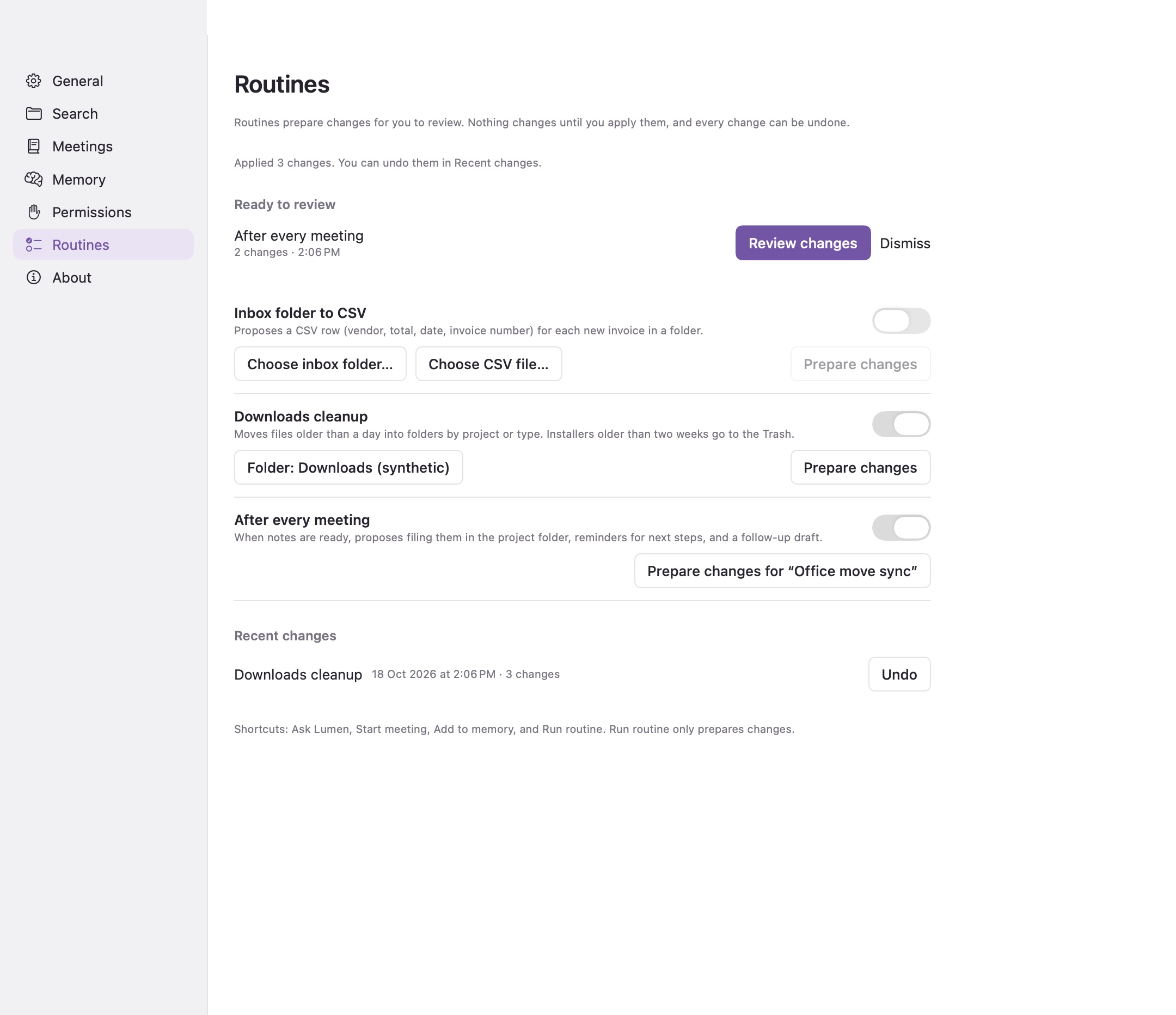
Inbox folder to CSV#
- Choose Choose inbox folder… and pick the folder where invoices or receipts arrive.
- Choose Choose CSV file… and pick or name the spreadsheet file.
- Turn the routine on.
When a new PDF or text file arrives, Lumen reads its text in the sandboxed helper and proposes one row: date, vendor, amount, currency, invoice number, and file name. Files already in the folder when you choose it are left alone. Rows that are missing a vendor, amount, or date are marked so you can check them. Prepare changes in the routine row checks the folder now.
Fields come from fixed patterns, not a model, so check each row. Text inside a document is treated as data: it can't add steps to a plan or change what the routine does. Values that start with =, +, -, or @ are written so spreadsheets don't run them as formulas.
Downloads cleanup#
Choose your Downloads folder, then Prepare changes. Lumen proposes:
- Moving files that match a project's name into that project's folder, when the folder is one you chose for search.
- Filing other files by type into Documents, Images, Archives, or Audio and video inside Downloads.
- Removing the duplicate number from names such as
receipt (1).pdfwhen the plain name is free. - Moving installers (
.dmg,.pkg) older than two weeks to the Trash.
Files less than a day old, unfinished downloads, hidden files, and subfolders are left alone. Lumen never replaces an existing file; it picks a free name such as photo 2.heic.
After every meeting#
When a meeting's notes are ready, Lumen prepares a plan with the notes saved as Markdown in the meeting's project folder (when the project has a folder you chose), a reminder for each open next step, and a follow-up draft saved in Lumen. Reminders are added only after you allow Reminders access. Drafts appear under Drafts, where you can Copy, Open in Mail, or delete them.
Review, apply, and undo#
In Review changes, clear any item you don't want. Apply changes runs the remaining items in order. If one fails, Lumen undoes the ones it already did and nothing is left half done.
Recent changes lists what was applied. Undo puts moved files back, restores trashed files from the Trash, removes added CSV rows, and moves files Lumen created to the Trash. Lumen won't undo a change to a file you edited since, and it tells you which items it left alone. Reminders already added stay in Reminders.
Routines work only inside the folders and file you chose. A plan that names any other location is refused.
Shortcuts#
Lumen adds four actions to the Shortcuts app:
| Action | What it does |
|---|---|
| Ask Lumen | Answers a question from your saved content, with sources, and returns the text |
| Start meeting | Starts recording from your microphone, named after the current calendar event when Calendar is on |
| Add to memory | Saves text as a memory, labelled Added from Shortcuts |
| Run routine | Prepares Inbox folder to CSV or Downloads cleanup and opens Lumen to review; it never applies changes |
Lumen must be running and set up for the actions to work.