
Memory is what Lumen keeps about your projects, people, and decisions so it can answer questions and prepare for meetings. It's off until you turn on a source, and nothing becomes memory until you accept it.
Turn on a source#
Open Settings → Memory. Each source has its own switch, and all of them start off. When you turn one on, Lumen explains what it keeps; choose Turn on to continue.
| Source | What Lumen keeps | Notes |
|---|---|---|
| Calendar | Event titles, times, and attendee names | If you haven't allowed calendar access in Permissions, macOS asks when you turn it on. Lumen doesn't keep event notes, links, or locations, and never changes your calendar. |
| Meetings | Suggestions from decisions and the speaker names you confirmed | Sample meetings are never used. |
| Chosen folders | The names of the folders you chose for search | Used only to group meetings into projects. |
| App activity | The app in front, its window title, and the time, recorded when you switch apps or windows | Off by default. Only active time counts: time stops after 2 minutes without keyboard or pointer input, and when the Mac locks or sleeps. Window titles need Accessibility access (Allow window titles…); without it Lumen keeps app names only. Raw events are kept for 7 days unless you change it. |
| Clipboard | Text you copy | Off by default. Kept for 1 day unless you change it. |
Pause memory on the Memory page, in Settings → Memory, or in the menu bar stops every source at once. The sidebar shows Memory off, Memory on, or Memory paused. The menu bar shows a small dot while a source is on and a pause mark while memory is paused.
How the timeline captures#
Lumen doesn't poll. It listens for macOS notifications: the app you switch to, and, with Accessibility access, focus and title changes in the front app's window. Time counts until you switch, lock the screen, the display sleeps, or memory is paused, and at most two hours per event.
macOS has no clipboard notification, so Lumen checks the clipboard once each time you switch apps. It keeps only the last text you copied in each app.
What's never kept#
- Password managers (1Password, Bitwarden, Apple Passwords, Keychain Access, and others), the lock screen, and the screen saver.
- Anything while secure text entry is on, such as a password field.
- Clipboard items that apps mark as private or transient (the nspasteboard.org convention many password managers use).
- Browser page titles. Lumen records only that a browser was in front, so private windows and sites are never recorded.
Exclusions you add#
Under Exclusions in Settings → Memory:
- Apps: nothing from these apps is kept.
- Words in window titles or copied text: a window or copy containing one of these words is skipped.
- Folders: documents in these folders are skipped when the app reports the document's location, which most document apps do. For other apps, add words instead.
- Times: nothing is kept on the chosen days and hours, for example weekends or evenings.
An exclusion applies from the moment you add it. If Lumen already saved something from it, Lumen asks whether to delete that too, and shows what it found, for example "20 activity entries and 14 days of app totals since 28 September". Choose Delete or Keep; the exclusion applies either way. Delete permanently removes:
- the matching activity entries and clipboard items, and the hourly and daily totals on Today;
- for an app, its saved category;
- memories that came only from it, with their search passages and vectors (memories with other sources keep those sources);
- digests for the affected days, which are rebuilt from what's left while raw activity is still kept.
Deleting runs in the background and shows Deleted when it's done. Excluded apps never appear on Today or in Ask Lumen answers, even if you choose Keep. Activity entries don't record document locations, so a folder exclusion deletes memories that came from files in that folder; to remove a folder from file search, use Settings → Search.
Categories#
Today groups apps into Work, Development, Design, Writing, Communication, Meetings, Planning, Browsing, AI, Entertainment, Utilities, and Other. Each app's category comes from, in order:
- A built-in list of common Mac apps.
- The category the app declares for the App Store.
- For apps still unknown: a one-time suggestion from the local model, made in idle time from the app's name, bundle ID, and declared category only. It's marked Suggested until you choose Keep or another category. Without the model, the app stays in Other.
Browsers always count as Browsing; Lumen doesn't look at page titles or addresses to guess more. To change a category, choose it next to the app on Today, in an app's detail (All categories…), or in Settings → Memory → Categories, which lists every app Lumen has seen. Past time moves to the new category at once.
Retention and storage#
Raw events are deleted after each source's retention period, checked at launch and about hourly. Daily summaries, and the hourly time per app that Today charts, are kept until you delete them; they don't include window titles or copied text. Raw activity is also held under a storage budget; the oldest events are deleted first when it's full. The storage meter shows memory's total size.
Review suggestions#
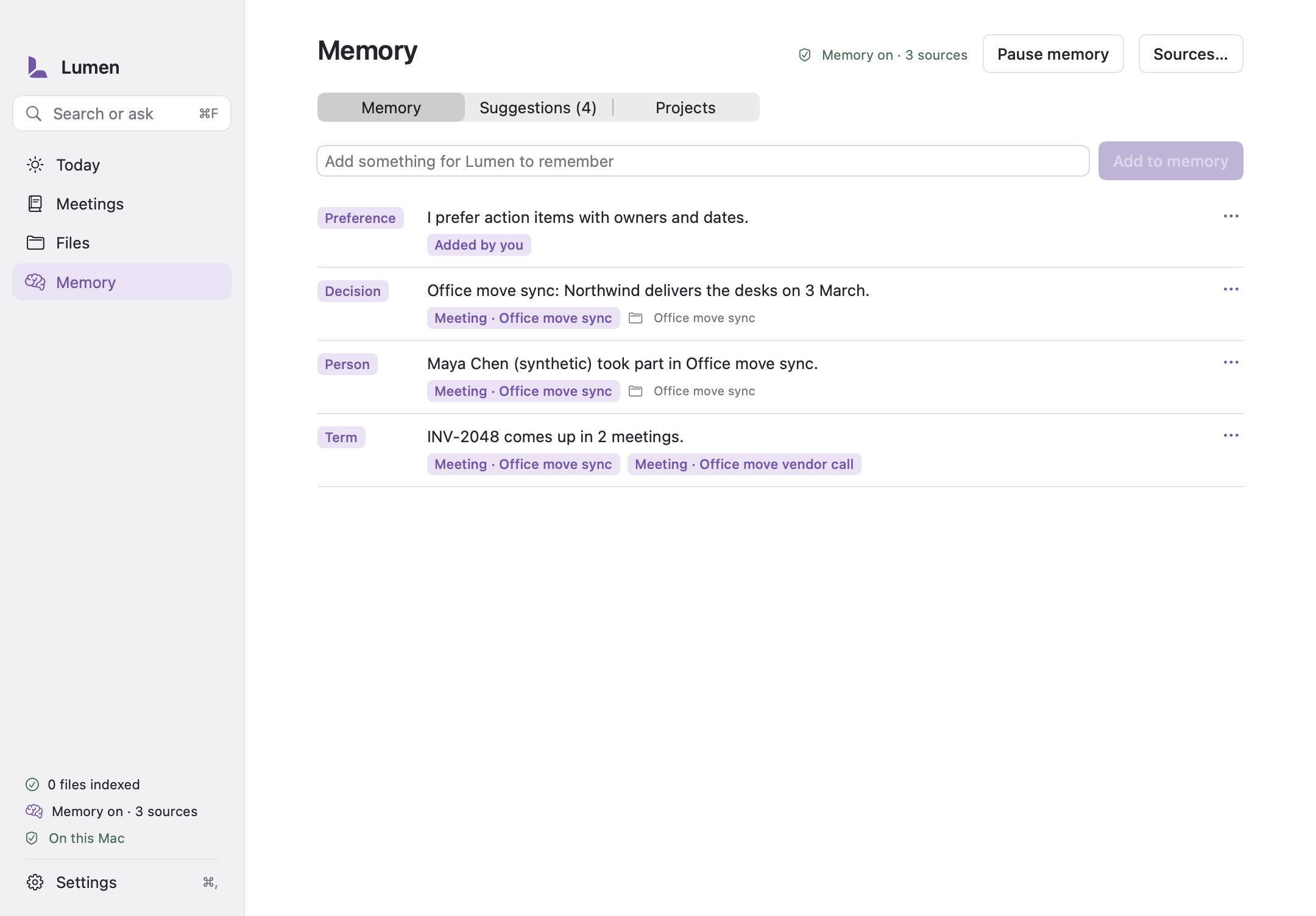
Lumen suggests memories from enabled sources, for example a decision from a meeting or a person who regularly attends the same event. Open Memory → Suggestions and choose Accept, Edit…, or Dismiss for each one. A dismissed suggestion isn't offered again.
Every memory keeps links to where it came from. Select a link to open the meeting at that moment. To add something yourself, type it under Memory and choose Add to memory.
Today#
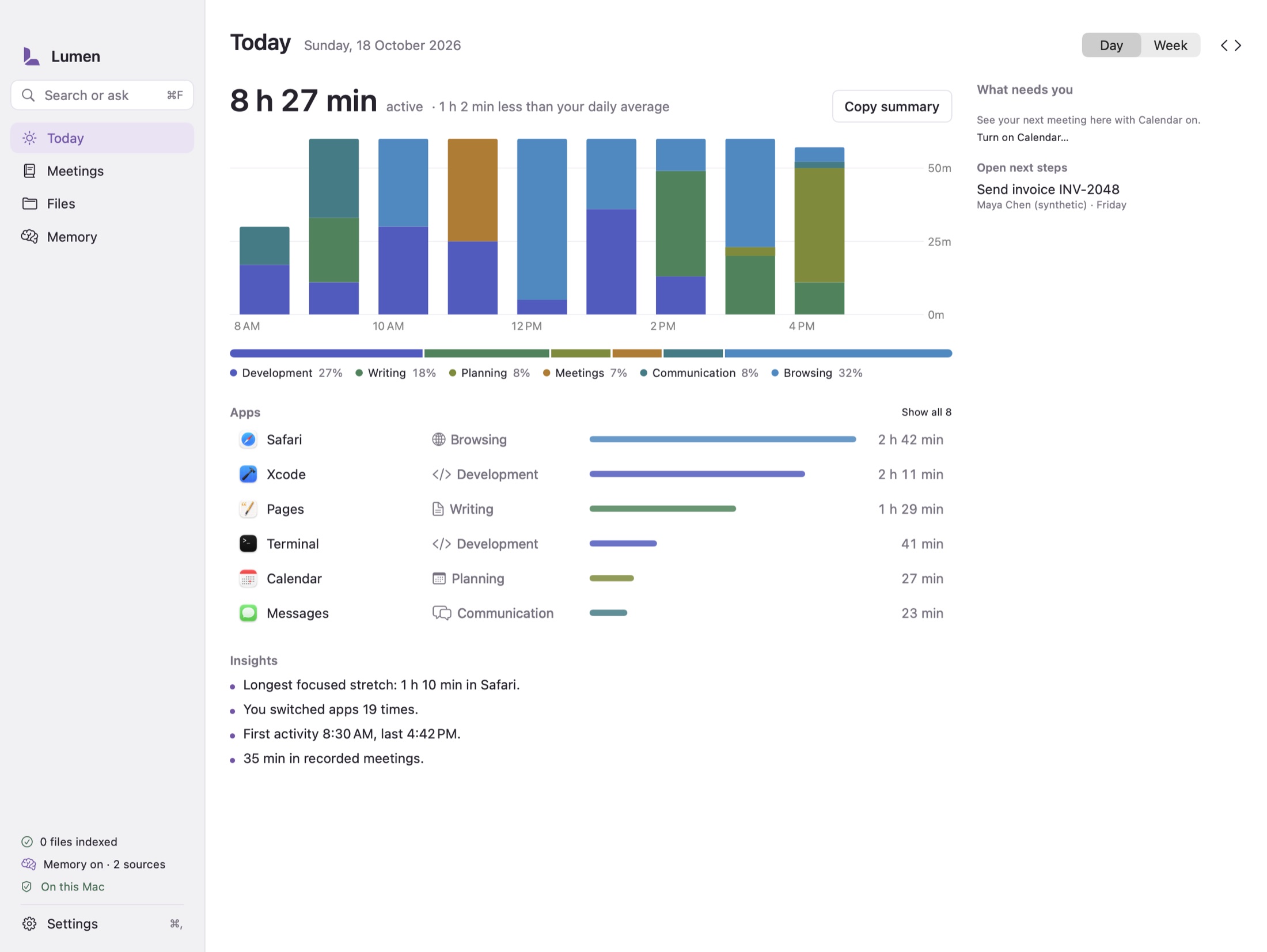
Today is the home view. With App activity on, it shows where your active time went:
- Day or Week, with the arrows to go back. The total compares with your daily average once there's a week of data.
- A chart of active time by hour (or by day), colored by category: Work, Meetings, Communication, Browsing, and Other. Select a bar to see its breakdown. Time in a meeting you recorded counts as Meetings.
- The category split, as percentages.
- Apps, with time and a bar for each. Select an app to see when you used it and its time by window title and project. To change an app's category, choose its category and pick another; Use default category undoes it. Categories start from each app's App Store category.
- Insights: your longest focused stretch in one app, how often you switched apps, your first and last activity, and time in recorded meetings.
- Projects: time by project, with Copy and Export CSV… for a timesheet.
Copy summary copies a plain-text summary of the day or week, for a standup. Excluded apps never appear on Today, not even as Other.
What needs you sits beside the dashboard: your next meeting with Brief, Changes to review from routines, Open next steps from this week's meetings, memory suggestions, and Copied today when Clipboard is on (copy again or delete each item).
When App activity is off, Today shows a small preview labeled Sample, made of invented data, and Turn on app activity…, which asks before turning anything on.
Digests and timesheets count only what Lumen kept. They miss time in excluded apps, browsers (counted by app only), and paused periods, so check them before billing from them.
Summaries for past days are made in the background when macOS schedules it and the Mac is plugged in, not in Low Power Mode, not under memory pressure, and not recording.
Projects#
Lumen groups meetings and chosen folders into projects: a chosen folder starts a project, and two or more meetings with the same topic form a suggested one. Open Memory → Projects to rename and Confirm a project, remove a meeting from it, or delete it. A meeting's project and calendar event appear under its title.
When Calendar is on and an event is happening, Start meeting fills in the event's name.
Ask Lumen#
Press ⌃⌥A, choose Ask Lumen… in the menu bar, or press ⌘K in the app. Ask is a mode of the command bar: from Search, press Tab to ask about what you typed. Type a question and press Return.
- Lumen looks only in your chosen folders, your meetings, accepted memory, calendar events when Calendar is on, and kept activity and copies when those sources are on. Questions such as "What was I doing at 3 pm?" use the timeline.
- When nothing saved matches, it says I couldn't find that in your saved content. and doesn't run a model.
- With the local AI bundle, Gemma 4 E2B writes a short answer from the matching passages and cites them. An answer that can't be tied to a saved source isn't shown.
- Without the notes model, or while a meeting is recording or being processed, Lumen lists the matching sources instead of writing an answer.
Press ⌘1–9 to open a source. Answer quality hasn't been evaluated; check the cited sources before relying on an answer.
Delete memory#
In Settings → Memory:
- Delete today’s memory removes today's memories, calendar links, activity, and copies.
- Delete by source removes everything that came from one source, including memories that rely only on it.
- Delete these days removes a date range.
- Delete all memory… removes every memory, suggestion, project, calendar link, and all captured activity and digests.
Deleting removes the saved text, its search passages, and its vectors. Lumen turns on SQLite secure delete for the memory index and activity database and compacts them after deletion, so deleted text isn't left in the files. Meetings and your files aren't deleted; delete a meeting from Meetings. Backups you made separately aren't affected.
Where memory is stored#
Memory lives in the Memory folder inside Lumen's data folder: one JSON file per memory, settings.json, context.json for projects and calendar links, MemorySearch.sqlite for keyword and vector search, and Activity.sqlite for the timeline, copies, and digests. Nothing is sent over the network.