
Lumen records meeting audio on your Mac, saves your rough notes and action items, and exports Markdown. This page explains how to record or import a meeting, review the notes against the transcript, and recover unfinished work.
Before you begin#
- Get the local AI bundle for transcripts and generated notes. It includes Whisper large-v3-turbo for transcription, Silero for local speech-activity filtering, and Gemma 4 E2B for generated notes. A base build without the bundle needs compatible local tools for these steps. To check readiness, open Settings → Meetings → Local models.
- Tell everyone before you record. Make sure everyone in the meeting knows you intend to record.
Note: Recording from a real microphone or call still needs permission and hardware validation on your Mac.
Try the sample meeting#
You can learn source navigation and export without recording anything.
- Choose Meetings → + → Try a sample meeting.
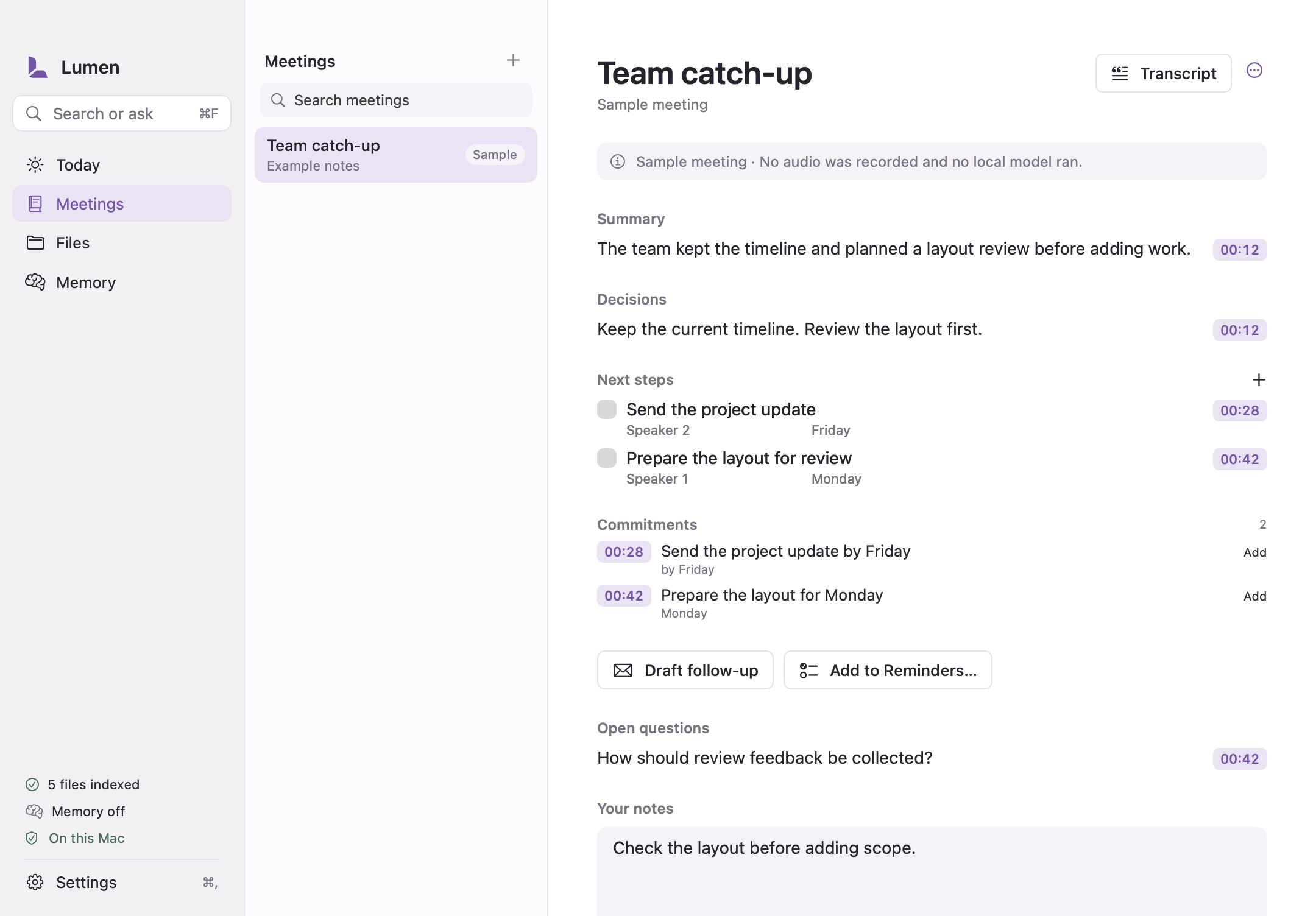
- Read the transcript and notes, and select source links to see how they connect.
The Sample warning stays visible the whole time. The sample's transcript, summary, decisions, action items, and source links are examples; no recording or model inference produced them. The sample isn't saved as a real recorded session.
Start a recording#
- Choose Start meeting in Meetings, the toolbar, or the menu bar, or press ⇧⌘M.
- Enter a meeting name.
- Check your audio sources. Select at least one:
- Microphone records your voice. It's on by default.
- Meeting audio records the other people on the call. It's on by default once Screen & System Audio Recording is allowed.
- Choose Start meeting. If you haven't allowed the microphone yet, macOS asks now.
macOS names the call-audio permission Screen & System Audio Recording. Lumen uses ScreenCaptureKit for audio only and doesn't save screen images. After you allow it, macOS may ask you to quit and reopen Lumen.
If meeting audio isn't allowed, the sheet says only your microphone will be recorded and offers a fix: Allow meeting audio, Open System Settings, or Quit and reopen after granting it. Check that warning: microphone-only audio may leave out other participants. If call audio fails after recording starts, Lumen continues with the microphone and shows a warning.
The sheet also reminds you to tell everyone before you record. Automatic recording is a separate setting; see call nudges and automatic recording.
The recording indicator stays visible in Lumen and in its menu-bar item. Closing a window doesn't quit the app or end the recording. To end it, choose Stop recording.
Take notes during the meeting#
- To pause or continue capture, choose Pause or Resume. The timer measures recording time.
- To take notes, type in Your rough notes. Lumen saves changes locally.
- To add an action, choose Add under Next steps. You can edit its text, an optional owner, an optional due date, and its completion checkbox.
- To read in a separate window, choose Meeting actions → Open in new window.
When the transcript appears#
When speech tools are ready, the first transcript text appears after Lumen closes an audio chunk (roughly 25 seconds) plus inference time. Short recordings finish transcription after you stop. A status line shows whether Lumen is listening, transcribing, or has failed. Silence can produce no text.
Speaker labels are added after you stop, and names need your confirmation. File indexing pauses during the meeting so meeting work runs first.
Import an existing recording#
- Choose Meetings → + → Import recording….
- Select a local WAV, CAF, M4A, MP3, AIFF, or FLAC file.
Importing doesn't ask for microphone or screen-recording permission, and it never changes the file you select.
With the local AI bundle, Lumen then prepares the recording automatically:
- Whisper transcribes the audio and detects its language.
- Silero filters out silence.
- Gemma generates notes linked to the source.
- After transcription, speaker segmentation and voice embeddings group voices across chunks within this meeting. Lumen keeps microphone and call tracks distinct and aligns labels to Whisper word timings.
You don't need to choose a model or set up an account, an API key, or a cloud fallback. Imported audio is labeled separately from live microphone and call tracks. After preparation, the meeting is included in meeting-text search.
Import limits#
| Item | Limit |
|---|---|
| Formats | WAV, CAF, M4A, MP3, AIFF, FLAC; decoding depends on the macOS codec |
| File type | Regular files only |
| Size | Up to 2 GB |
| Length | Up to four hours |
| Channels | One to eight |
| Processing | Bounded PCM chunks with one-second overlap |
An unsupported or damaged file reports an error.
What happens if import stops#
- If you cancel the import, the original file stays intact and Lumen doesn't save an incomplete meeting.
- If you cancel inference or processing fails, Lumen keeps its copies of the audio so you can retry.
- The saved-audio preference applies only to Lumen's copies, never to your original file.
Stop and prepare notes#
Choose Stop recording. Lumen finalizes the local audio chunks. If compatible transcription and summary tools are ready, Lumen starts processing locally. The current workflow needs both tools.
| Status | What it means and what to do |
|---|---|
| Notes aren’t prepared yet. / No transcript yet | The recording has no completed generated notes. Your audio and rough notes remain available. |
| Preparing your notes… | Local processing is running. You can cancel; saved input stays available for retry. |
| Summary, Decisions, and Next steps shown | Transcript, validated notes, and metadata were saved successfully. Review them before use. |
| Failure or interrupted-session notice | Read the error, use Show saved audio, and retry after resolving it. |
Lumen summarizes long transcripts in bounded batches and keeps links to the original source.
Check local tools#
Lumen verifies bundled models automatically at launch. To check readiness, open Settings → Meetings → Local models.
Developers can import a verified adapter through Details → Choose local tools…. A raw model file isn't enough. See the bundled-model guide and the adapter contract.
Review notes and sources#
- In Notes, read the summary, decisions, next steps, and open questions.
- Select a violet source timestamp. Lumen switches to Transcript and shows the cited segment.
- Check names, numbers, dates, decisions, and action owners against the source.
- Correct the editable next steps and add your own rough notes.
The summary and decisions appear with source links. In this release, you can edit rough notes and action items.
Name speakers#
- Choose Transcript → Review speakers.
- Enter the names you know, or choose This is me.
- To fix a single passage, use the speaker menu beside it. You can assign a different speaker or leave it unassigned.
If a labeled voice says "my name is …", Lumen can suggest that name. Choose Use name to confirm it. Names apply only to this meeting, and they appear in transcript search and Markdown export.
Two labels can appear instead of a name:
- Speaker unclear means Lumen made no confident assignment.
- Overlapping speech marks detected overlap.
Lumen keeps the original transcript words.
Note: Speaker labels are estimates and don't establish a person's identity. Microphone and call labels identify audio tracks, not verified people. Shared microphones, loudspeaker echo, short utterances, and simultaneous speech can confuse attribution.
Prepare, follow along, and follow up#
These features use your saved meetings. The brief also needs Calendar on in Settings → Memory; see Memory and Ask Lumen.
- Brief. When an event starts within 12 hours, the meeting library shows it with Brief. The brief lists the people invited, earlier meetings with the same people or topic, their open next steps and decisions, accepted memory, and related files from your chosen folders. Start meeting fills in the event name.
- Commitments. While the transcript arrives, Lumen lists sentences such as “I'll send the deck Friday” under Commitments, with the moment they were said. A commitment becomes a next step only when you choose Add. Owners come only from a name in the sentence or a speaker name you confirmed; Lumen doesn't guess.
- Floating panel. When recording starts, a small panel stays on top with the timer, Pause, Stop, commitments, and a quick-note field that adds to your rough notes. Close it any time, reopen it from the recording bar or the menu bar, or turn it off with Settings → Meetings → Floating panel while recording.
- Draft follow-up. After a meeting, Draft follow-up writes a recap from the saved summary, decisions, next steps, and open questions. Edit it, then Copy it or Open in Mail, which opens a compose window in your mail app. Lumen never sends anything.
- Add to Reminders. Review each open next step, change its title or date, and clear the ones you don't want. Lumen asks for Reminders access only when you choose Add, then adds the items to your default list. It never edits or deletes reminders. Items from the sample meeting start unselected.
Commitment detection is a phrase-matching heuristic. It can miss commitments or include sentences that aren't commitments, so treat the list as suggestions.
Search saved meetings#
- In Meetings, select Search meetings at the top of the list.
- Type your search. Results appear as you type.
Lumen searches saved transcripts, titles, rough notes, and generated notes. A result from a transcript passage shows a timestamp; select it to open that saved segment. Semantic search becomes available after local meeting vectors finish preparing. Samples and active recordings aren't included.
Export Markdown#
- Choose Export notes… in the meeting or in its actions menu.
- Review the preview. To leave out the transcript, clear Include transcript. It's selected by default.
- Before you share the file, check participant details, rough notes, actions, and timestamps.
- Choose Save Markdown, then choose a destination in the save panel.
Lumen saves a local file and doesn't send it to anyone. The export contains notes only, not the original audio. Sample exports keep the sample warning.
Recover unfinished work#
If Lumen is interrupted during a meeting:
- Reopen Lumen and select the meeting. Lumen marks the session as interrupted and recovers finalized chunks where available.
- To see the saved files, choose Show saved audio. This opens the session folder.
- When compatible tools are ready, choose Prepare notes again to run processing again.
Lumen keeps the audio on disk when tools are missing, processing fails or is cancelled, or the final durable save hasn't succeeded. This protection applies even when Keep original audio is off.
Important: Don't delete session files while recovery is pending.
Reprocess saved audio#
You can run the current local tools again on a meeting that still has its audio, for example to add speaker labels to an existing recording.
- Open the meeting.
- Choose Meeting actions → Reprocess a copy.
Lumen copies the audio into a new, labeled meeting and runs the current local tools. The original session stays available. Rough notes and manually added next steps carry over to the copy; the transcript and generated notes are created again. The copy keeps its audio for review.
Meetings without retained audio can't be reprocessed.
Turn on call nudges or automatic recording#
Lumen can suggest starting or stopping a recording when a supported app uses your microphone. Both options are off by default.
Get start and stop nudges#
- Open Settings → Meetings → Meeting detection.
- Choose Suggest recording. The default is Off.
When a supported app keeps the microphone active, Lumen shows a suggestion to start recording. Review the audio sources before you start. After activity ends for 30 seconds, Lumen nudges you to stop a manual recording. The recording continues until you stop it.
Record automatically#
- Before you turn this on, start one meeting with Start meeting so that microphone and screen and audio recording permissions already exist.
- In Settings → Meetings → Meeting detection, choose Record automatically.
- Optional: To include browser calls, turn on Record browser calls automatically. Browser microphone activity can't identify a particular meeting site, so this is a separate opt-in.
Automatic mode stops only the recordings it started. Changing the mode leaves a current recording running.
Note: Meeting detection is a local microphone-activity heuristic. It doesn't read tabs, URLs, windows, or calendars. Muting, device changes, and microphone use outside meetings can affect detection.
Limitations#
- Voice features exist only during processing. Lumen stores no voice profiles across meetings.
- Lumen doesn't delete audio merely because two tracks contain similar words.
- Live speaker labels before you stop, automatic identity recognition across meetings, and acoustic echo cancellation aren't available.
- A recap-card and sharing workflow is planned separately.