
Build Lumen, search a small folder, and open the original passage. You don't need an account, an API key, or a model package.
Requirements#
| Requirement | Details |
|---|---|
| Operating system | macOS 14 or later (the deployment target) |
| Hardware | Apple Silicon. Development checks used one M1 Pro with 16 GB RAM. |
| Build tools | Xcode toolchain with Swift 6 or later, macOS SDK, codesign, and iconutil |
| Storage | Space for the build, the extracted search index, and any meeting audio you keep |
| Models | None for keyword search or the sample meeting |
Note: The local AI bundle targets Apple Silicon and passed a small English synthetic evaluation on that M1 Pro. An 8 GB Mac, other languages and hardware, and battery use haven't been evaluated yet. See the validation limits.
Build the app#
Open a terminal in the source folder and confirm the selected toolchain:
swift --version
xcode-select -p
Optional: To include the local AI bundle, install
uvfrom its official distribution, then prepare the bundle. This downloads several GB.bash scripts/prepare-local-models.sh --downloadFor pinned provenance and tests, see the model guide. Skip this step for a base build with keyword search and recording only.
Build the signed bundle. Open the app only after the script finishes successfully.
./scripts/build-app.sh release
open build/Lumen.app
The script builds the app and its helper, adds the icon and license notices, signs both, and verifies the bundle. It uses local packages and system frameworks.
If the toolchain can't be found, see build troubleshooting.
How the app is signed#
The app is signed for local development. It isn't notarized or packaged as a public download.
If exactly one Apple application certificate is available, the script uses it automatically. Without one, the script warns and uses ad-hoc signing, and macOS can ask for permissions again after code changes. To choose a signing identity, see development signing.
Important: Open Lumen from this signed bundle to get the intended sandbox boundary. Running swift run Lumen doesn't provide that boundary.
Make your first search#
- In Lumen, choose Get started. Lumen creates local storage and, in a build without bundled models, starts the one-time model download from Hugging Face in the background. A storage bar shows how much space it needs. Keyword search and the sample meeting work right away.
- Choose Choose folders…, then select a small folder with supported text files, Markdown, or PDFs with selectable text.
- Choose which permissions Lumen may use. Each permission is listed with what it's for and its own Allow button, and macOS shows one prompt at a time. Skip any you don't want, then choose Continue. Allowing a permission doesn't turn on memory or start recording. You can change these later in Settings → Permissions.
- Wait for indexing to finish. The sidebar shows progress; select it for any file-specific issues.
- Choose Search or ask at the top of the sidebar, or press ⌘F, and type words from a document. Results appear as you type.
- Select a result to read the extracted passage or view the PDF at the matching page. To open the original in its default app, choose Open file.
Lumen reads the files you choose and doesn't change them. To explore the sample meeting first, choose Skip for now during setup.
Use the synthetic demo#
The source folder includes a synthetic office-move fixture. To add a two-page PDF and more text fixtures, run:
swift Evaluation/make-fixtures.swiftSelect Evaluation/Fixtures with Choose folders…. If the folder is already selected, choose Refresh index. Then try these queries:
| Query | What to check |
|---|---|
INV-2048 | The exact invoice identifier appears in the returned passages |
Maya | A result contains the contact name |
"first week of June" | The generated PDF result points to page 2 |
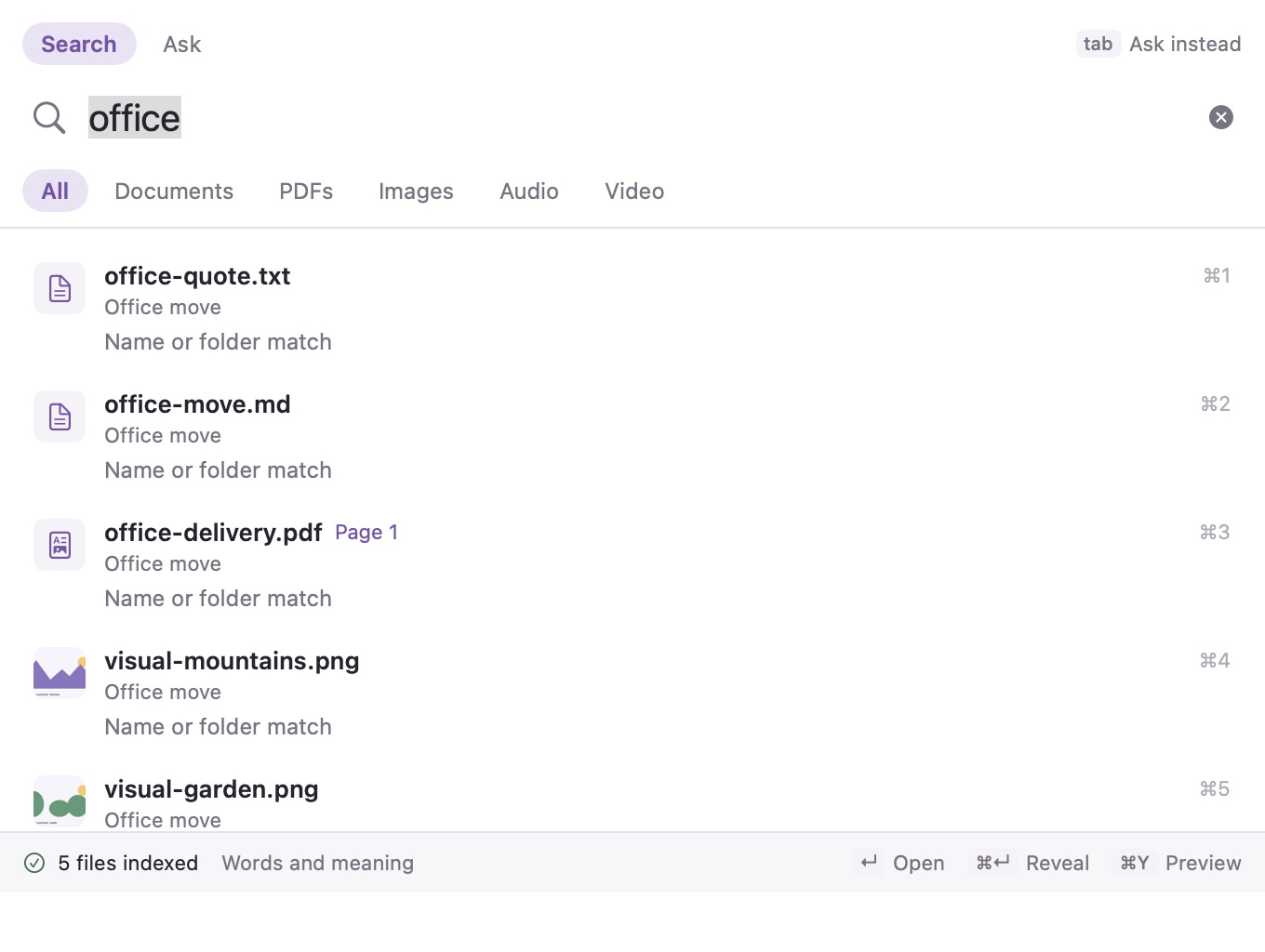
Note: This screenshot was captured on 15 October 2026 and shows real extraction and search results over synthetic files. It isn't an AI answer or a performance benchmark.
Explore meeting notes without recording#
- Choose Meetings → + → Try a sample meeting.
- Read the sample warning, summary, decisions, and next steps.
- Select a violet timestamp to jump to its passage in the sample transcript.
- Choose Export notes… and review the preview. To keep a local copy, choose Save Markdown.
The sample records no audio and runs no model. Recording is a separate action, and macOS asks for audio access when you start one. Before you record, read the meeting guide. With the local AI bundle, Lumen transcribes closed chunks during recording and generates notes after you stop.
Everyday controls#
| Control | Action |
|---|---|
| ⌘F | Open compact search while Lumen is active |
| ⇧⌘M | Open meeting setup |
| ⇧⌘O | Choose folders |
| Dock icon | Reopen Lumen’s main window after closing it |
| Menu-bar Lumen logo | Search, start a meeting, open Lumen or Settings, quit, or use active recording controls |
| Settings | Manage folders, local tools, appearance, and storage |
Control–Option–Space opens the command bar from another app while Lumen is running; Control–Option–A opens it ready to ask. If the shortcut can't be registered, Settings → General says so.
What's next#
- Search files: filter results, search more formats, and manage chosen folders.
- Meetings: record or import audio and review notes.
- Privacy: see what Lumen can access and what it stores.